


Headset Operation
& Cleaning
Proper use, microphone placement, headband adjustment, and care instructions for your Cyber Acoustics headset.
Microphone Placement
Optimal positioning for clear, distortion-free audio
 ✓ Do
✓ Do
 ✕ Don't
 ✕ Don't
Adjusting the Headband
Achieve a comfortable, secure fit before wearing
 Step 1
 Step 2
Cable Care & Storage
Protect your headset cable to extend its life
 ✕ Don't
 ✕ Don't
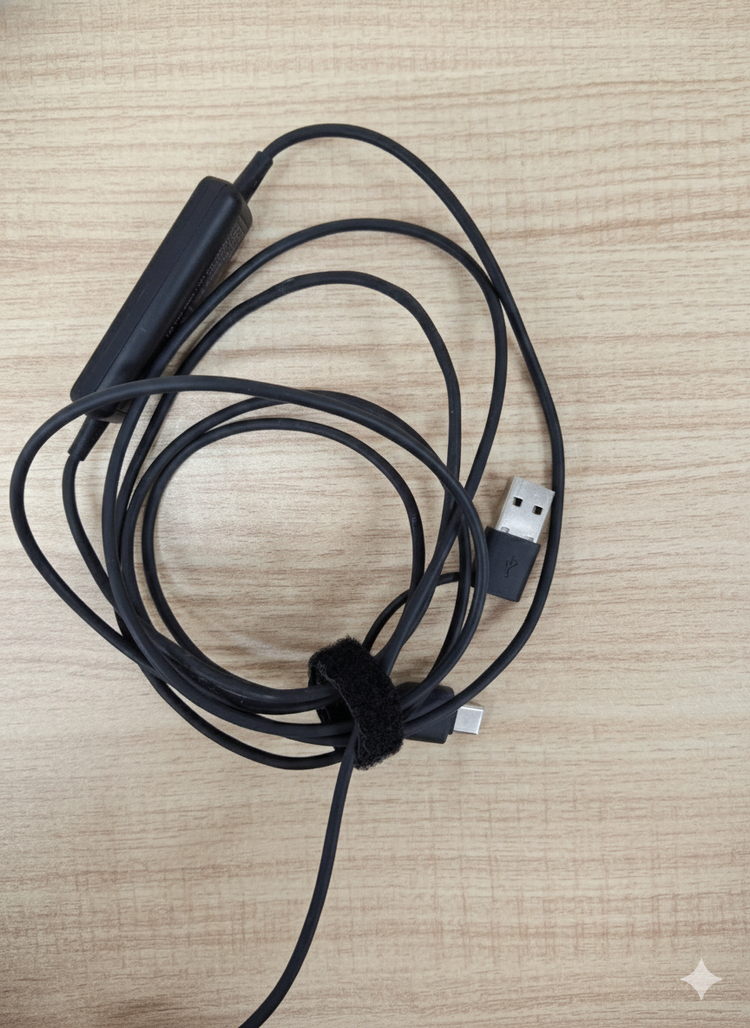 ✓ Do
✓ Do
 ✕ Don't
How to Clean
Keep your headset hygienic and in peak condition

Wipe the earcups and earpads gently with an alcohol wipe.

Run the wipe along the top and underside of the headband.

Carefully wipe the in-line controls and cable.

Wipe the microphone boom arm and housing. Allow to air dry.
Important: Only clean with alcohol wipes. Do NOT spray any liquid directly onto the headset. Liquid exposure can cause permanent damage and may void your warranty.
Video Guide
Watch the full headset setup and usage tutorial
Frequently Asked Questions
Common questions about setup, use, and care
The most common cause is covering the microphone with your hand or placing it too close to your mouth. Position the boom arm in front of your mouth at a slight angle — not straight out and not touching your lips. Covering the mic causes the gain to spike and produce distorted audio.
Always adjust the headband before putting it on. Hold the center of the headband with one hand and gently pull down on the earcup with the other. Repeat on both sides until the headset sits comfortably with the earcups fully covering your ears.
No. Do not spray any liquid directly onto the headset. Only use alcohol wipes to clean the earcups, earpads, headband, controls, and microphone boom arm. Spraying liquids can seep into internal electronics and cause permanent damage not covered under warranty.
For personal use, wiping down the earcups and earpads once a week is sufficient. In shared or high-use environments — such as call centers, schools, or training rooms — we recommend cleaning the headset between each user to maintain hygiene standards.
Ensure the connector is fully seated in the port. For USB headsets, try a different USB port. For 3.5mm headsets, confirm your device has a combined headset jack — some computers have separate headphone and microphone ports. You may also need to set the headset as the default audio device in your operating system's sound settings.