

Microsoft Teams includes built-in noise suppression designed to reduce background sounds during calls. This can help remove steady noise such as fans, typing, or air conditioning so your voice is easier to hear. If your headset’s microphone already includes its own built-in noise cancellation, the two systems can sometimes interfere with each other, causing audio issues.
You can enable or disable the Teams feature directly in the device settings.
Where to Find Noise Suppression in Microsoft Teams
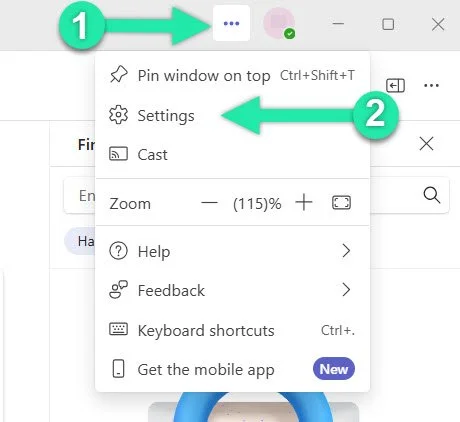
- Left-click the three dots (...) at the top right of Teams.
- Select "Settings" from the menu.
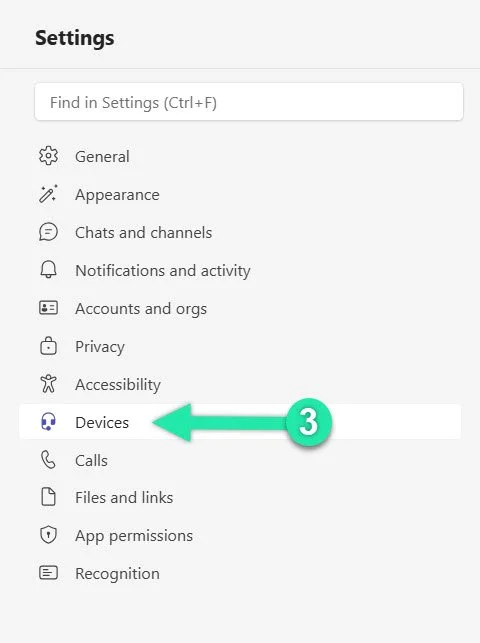
- In the left sidebar, select "Devices".
- Scroll down to "Noise suppression".
- Toggle the setting On or Off.
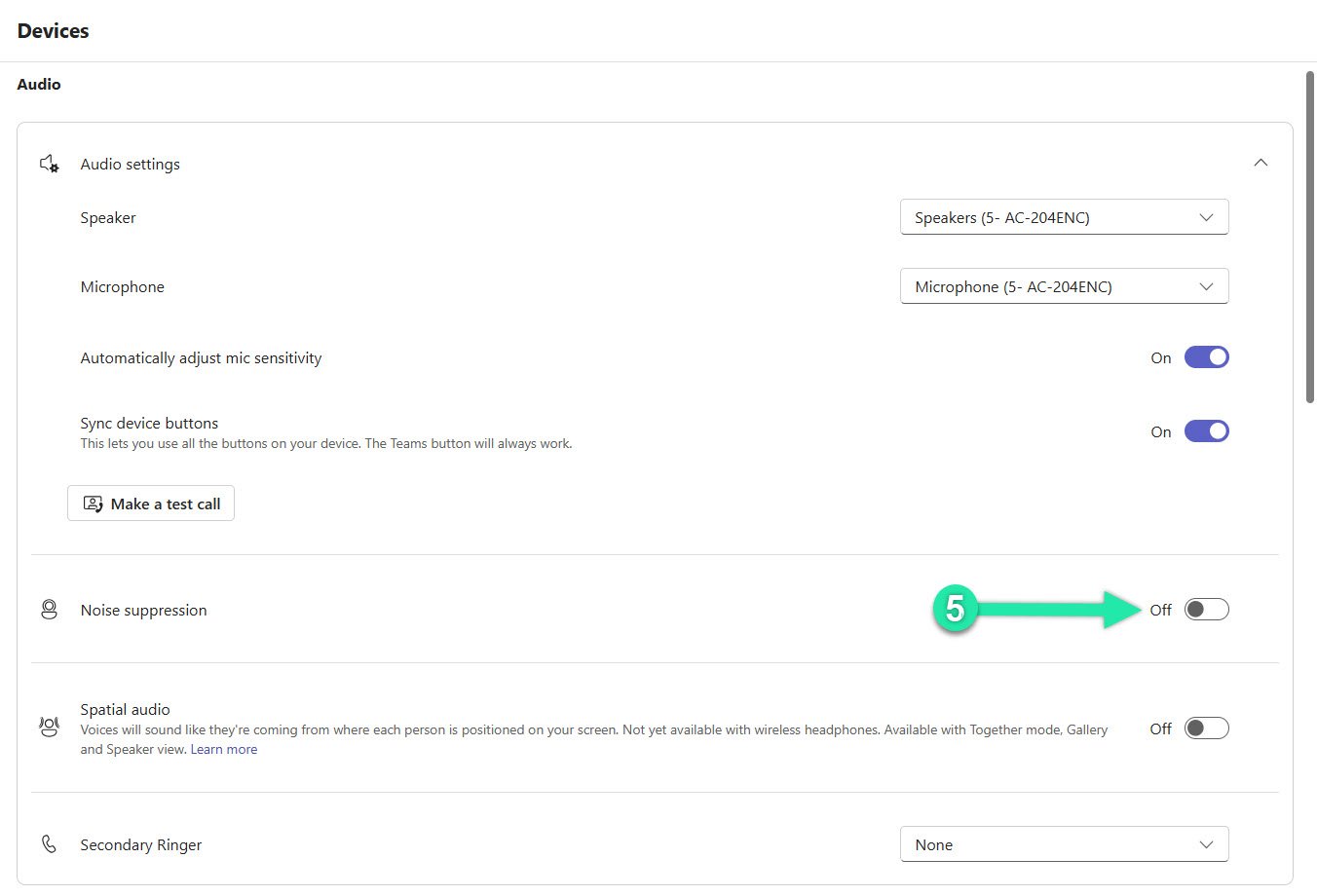
You can also use the "Make a test call" option in the same menu to confirm that your microphone sounds correct.
When You May Want to Turn Noise Suppression Off
If you are using a headset with built-in AI noise cancellation or ENC, running Teams noise suppression at the same time may cause audio problems such as:
- Distorted voice quality
- Hollow or robotic sound
- Audio cutting in and out
In these situations it is usually best to turn off Teams noise suppression and allow the headset to handle the noise filtering.
Headsets with Built-In Noise Cancellation
Many professional headsets, such as the AC-304, AC-404, and HS-1500BT II, perform noise reduction directly on the microphone. Because the processing happens in the headset itself, it avoids software conflicts and added latency.
These models use AI-powered noise cancellation to significantly reduce background noise, helping filter out common distractions like pets, household sounds, or nearby construction. This type of hardware-level noise cancellation is typically far more effective, making additional software-based noise suppression largely unnecessary.
Still Having Audio Issues in Microsoft Teams?
If you need more help, or if adjusting the noise suppression setting does not solve the problem, check out one of our other helpful guides: