


AC-204TR II

USB Agent Assist Headset with ENC

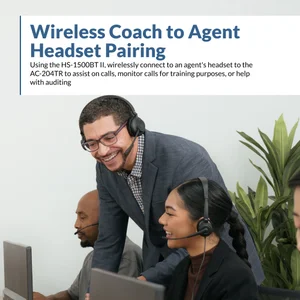
The patented AC-204TR II enables BPOs, call centers, and contact centers to improve agent training by making it easier for coaches to connect to agent's calls and offer guidance directly. It completely eliminates the need for Quick Disconnect (QD) headsets and offers a more modern, seamless solution that will reduce call times while providing better quality and more efficient training for agents.

Improve Agent Training
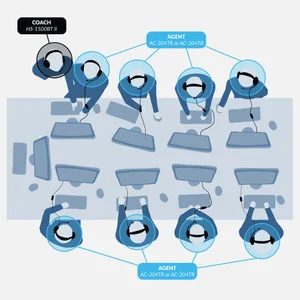
The AC-204TR II, worn by agents, offers a secure Bluetooth connection to the Cyber Acoustics HS-1500BT II, a professional wireless headset coaches wear that allows them to connect to each agent's call to listen or take over the conversation with the press of a button
Excellent ENC
This headset features excellent Environmental Noise Cancelation (ENC), which is not typically available with QD headsets, ensuring customers only hear the agent's voice, not what's going on around them
Secure Wireless Connection
The secure wireless connection between the AC-204TR II and the HS-1500BT II utilizes encryption security, ensuring no other devices, including another HS-1500BT II from a different coach, will connect to the agent's AC-204TR II, keeping the call between an agent and customer secure. Coaches can monitor both sides of the conversation between an agent and customer and take control of the conversation with the press of a button, without the need to swap QD connections with the agent
In-line Controller for Sound and Bluetooth Connection
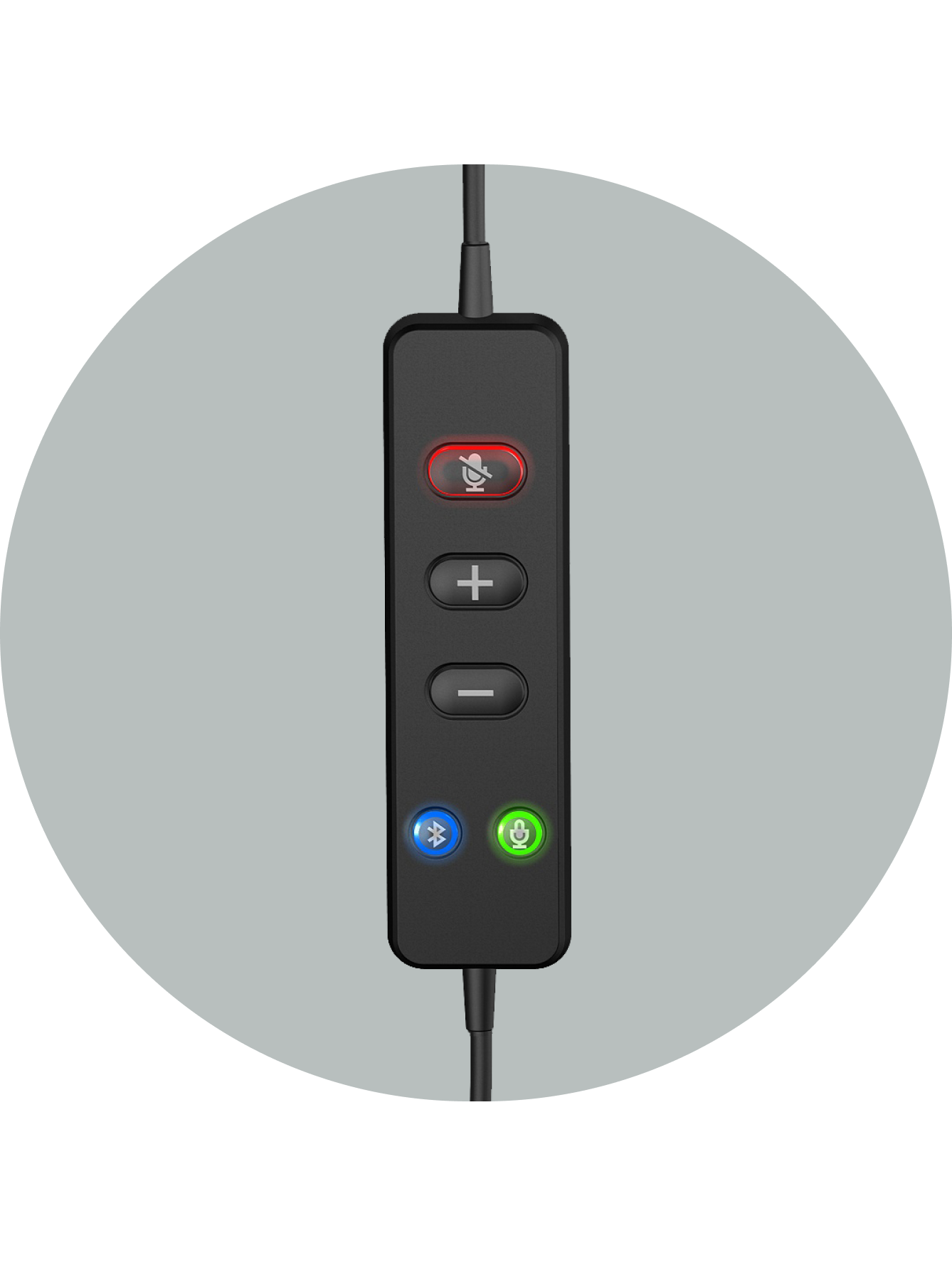
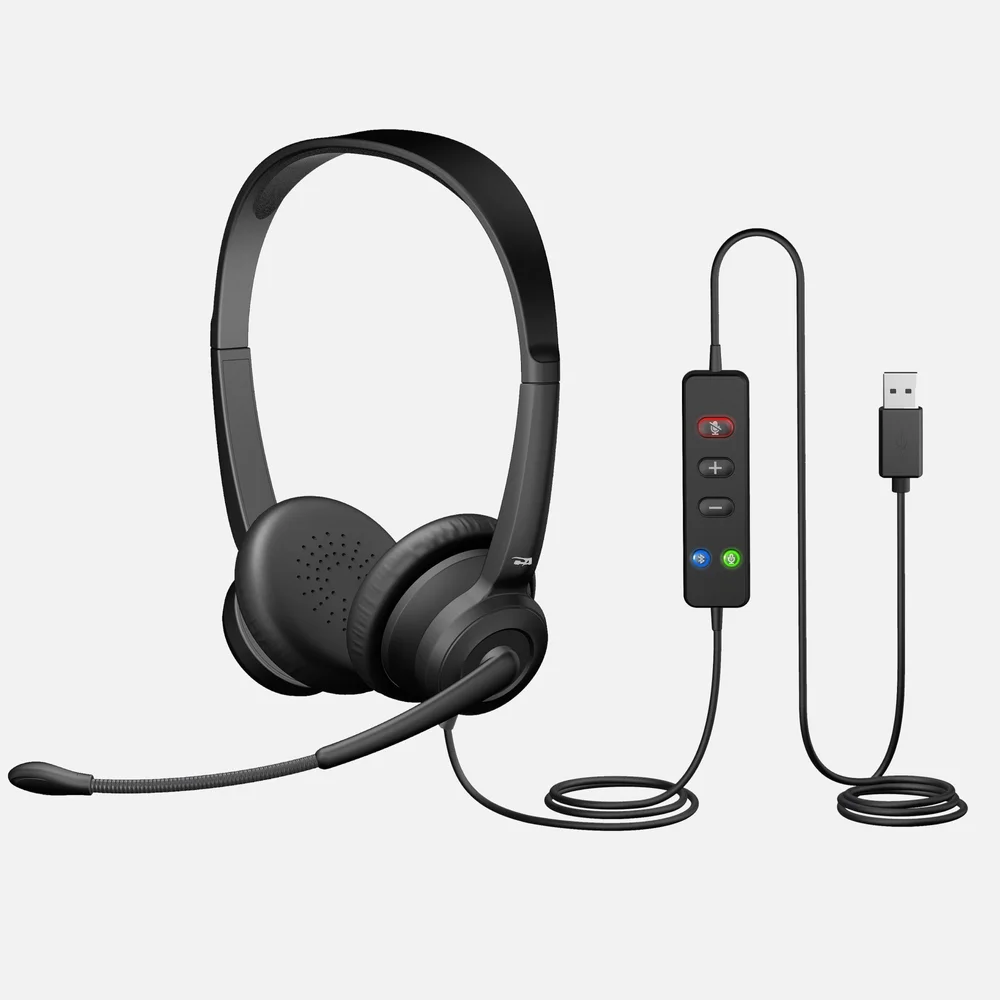
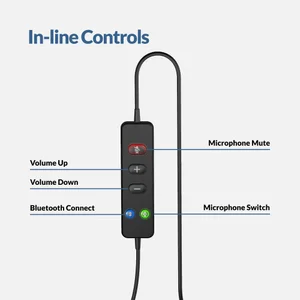
The AC-204TR II includes an in-line controller with convenient volume and mute controls with LED indicator, an integrated Bluetooth button with LED indicator for quick connection to the coach's HS-1500BT II, and a mic source button with an LED indicator to select between agent and coach headset mic easily
Lightweight and Comfortable
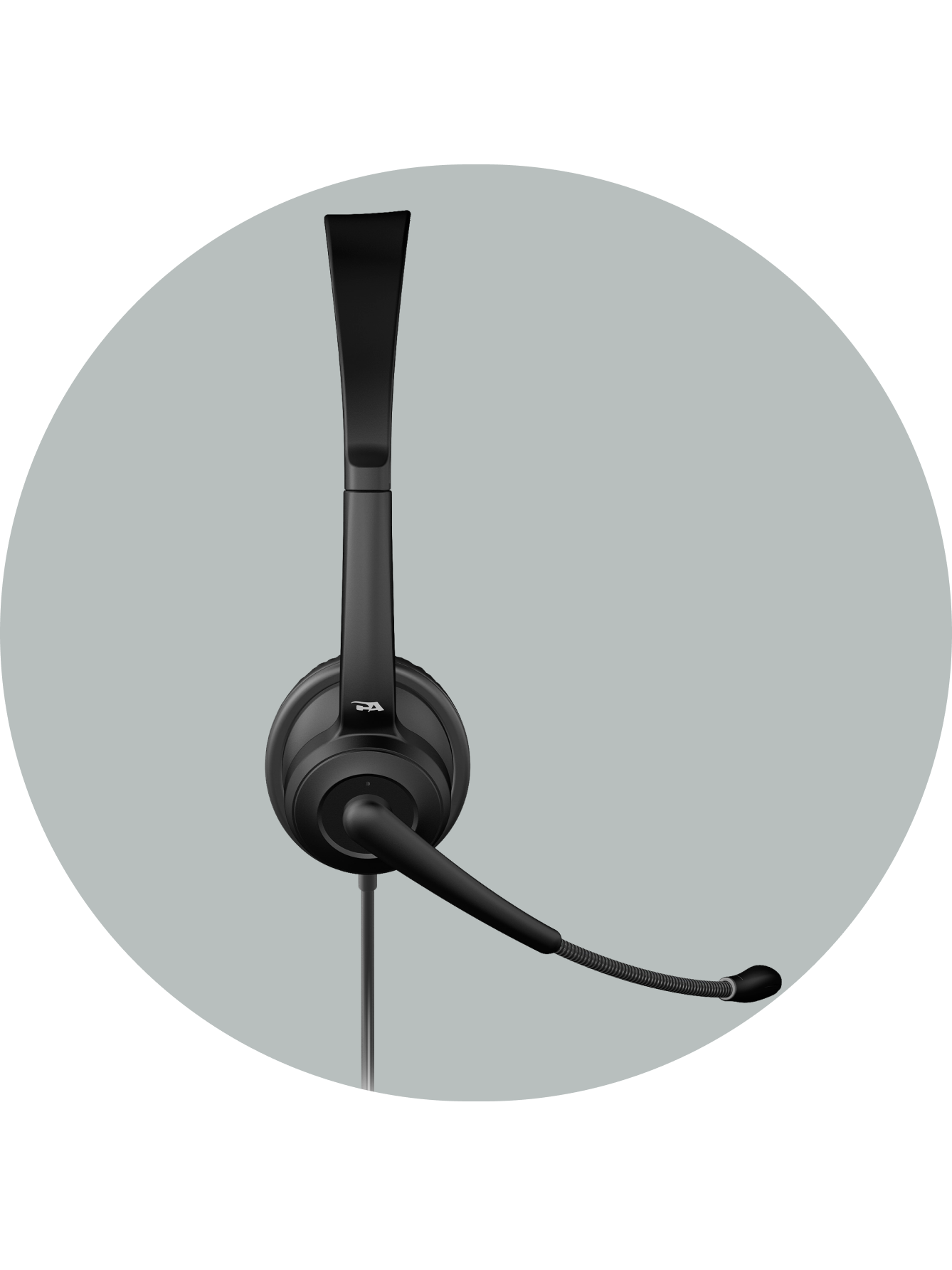
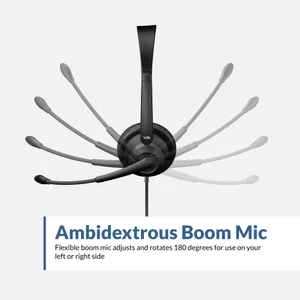
The AC-204TR II is lightweight enough to wear all day and features an adjustable headband, soft leatherette earpads, and an ambidextrous boom mic that lets the agent choose which side they prefer to wear the mic on
Platform Compatibility
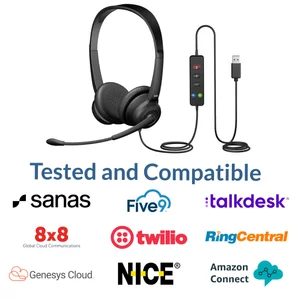
Works with all audio and video conferencing platforms, including Microsoft Teams, Google Meet, Genesys Cloud, Twilio, NICE CXone, Amazon Connect, 8x8, Five9, Talkdesk, RingCentral, Sanas, and Avaya

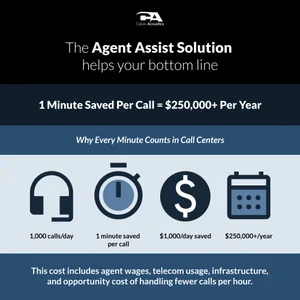
1 Minute Saved Per Call = $250,000+ Per Year

Why Every Minute Counts in Call Centers

Black and dark blue headphones icon with a microphone attached.

1,000 calls/day

Icon of a stopwatch with a blue face and a black outer ring, showing at the 12 o'clock position.

1 minute saved per call

Icon of a white dollar sign inside a dark circle, representing money or finance.

$1,000/day saved

Digital alarm clock displaying the time, with a rectangular screen and six button icons.

$250,000+/year

This cost includes agent wages, telecom usage, infrastructure, and opportunity cost of handling fewer calls per hour.
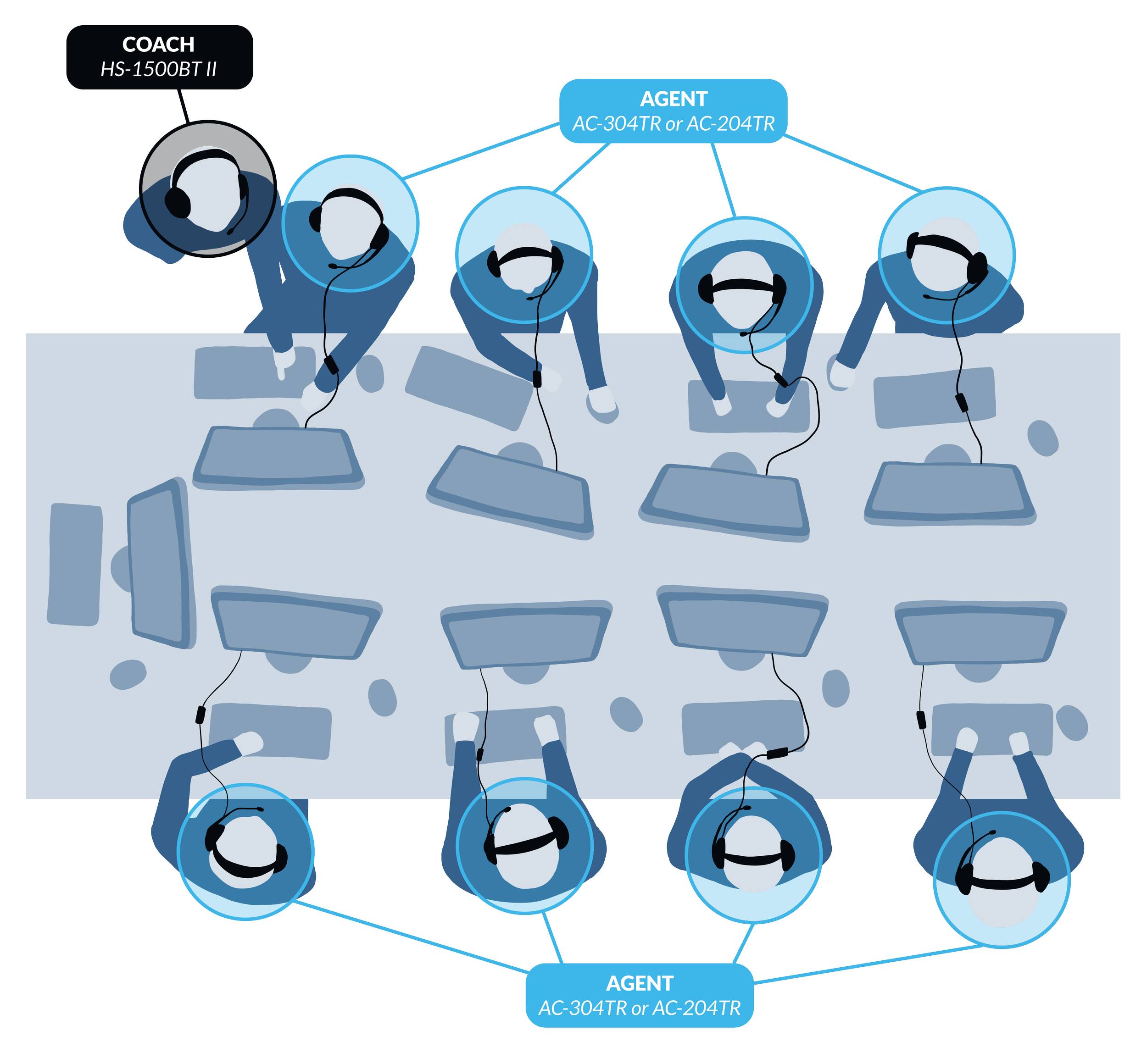
Illustration of a team of people working at a conference table with headsets and laptops, labeled with technical equipment and roles.

Specifications

  • Black headset with microphone labeled Cyber Acoustics on a light gray and black background.

    Environmental Noise Canceling Microphone

    The AC-204TR II features Environmental Noise Cancelation (ENC), which uses two microphones and an advanced algorithm to minimize noise for clear customer calls

  • Close up of the AC-204TR II's inline controls, featuring a microphone mute button (red), a Bluetooth connect button (blue) and a microphone switching button (green).

    Controls Designed for Agent Assist

    The AC-204TR II’s in-line volume and mute controls also include Bluetooth call connect and microphone switching capability. Connect to an HS-1500BT II and switch microphone inputs with the press of a button for a seamless customer service experience

  • Profile of the AC-204TR II headset

    Versatility and Comfort

    With an adjustable headband and easy-to-clean leatherette earpads, the AC-204TR II features a rotating boom microphone, allowing you to wear the microphone on either side of your head

Black Bluetooth headset control module with labeled buttons for mute, volume up, volume down, Bluetooth, and microphone select, connected to a USB plug with red, white, and green indicator icons.
Platform Agent Headset Testing Requirements Headset Requirements General Requirements
Genesys Cloud (CCaaS platform) AC-204TR II, AC-204ENC II, AC-304TR, AC-304 Hardware Vendor Integration and Managed Test Program Headset Recommendations Standard USB Headset with optional custom integration for mute & call controls
Twilio (Programmable communications) AC-204TR II, AC-204ENC II, AC-304TR, AC-304 Headset Vendor Self Test Headset Information Standard USB Headset
NICE CXone (CCaaS platform) AC‑204TR, AC‑204ENC II, AC‑304TR, AC‑304 Headset Vendor Self Test Headset Information Standard USB Headset
Amazon Connect (Cloud contact center) AC‑204TR, AC‑204ENC II, AC‑304TR, AC‑304 Headset Vendor Self Test Headset Requirements Standard USB Headset
8x8 (Unified communications) AC‑204TR, AC‑204ENC II, AC‑304TR, AC‑304 Headset Vendor Self Test Headset Information Standard USB Headset
Five9 (Cloud contact center) AC‑204TR, AC‑204ENC II, AC‑304TR, AC‑304 Headset Vendor Self Test with Formal Verification Headset Recommendations Standard USB Headset with optional custom integration for call controls
Talkdesk (Cloud contact center) AC-204TR II, AC-204ENC II, AC-304TR, AC-304 Headset Vendor Self Test Headset Information Standard USB Headset
Avaya (Enterprise communications) AC‑204TR, AC‑204ENC II, AC‑304TR, AC‑304 Not Maintained Headset Information Program Not Maintained
Standard USB Headset with legacy program for optional custom integration for call controls
RingCentral (Unified communications) AC-204TR II, AC-204ENC II, AC-304TR, AC-304 Headset Vendor Self Test Headset Reccomendations Standard USB Headset with optional custom integration for call controls
Sanas (Voice personalization) AC‑204TR, AC‑204ENC II, AC‑304TR, AC‑304 Managed Test Program Headset Information Standard USB Headset

Download Table as PDF

Common questions about call center headsets

How do I pair the AC-204TR II with the coach’s HS-1500BT II?
The two headsets have to be pre-paired before first use, and they need to be within 5 feet of each other. Turn on the HS-1500BT II without plugging in its USB Bluetooth dongle, then press and hold the Bluetooth button on the AC-204TR II while you plug it into the PC, holding for more than 2 seconds until its light flashes blue. Both Bluetooth LEDs turn solid blue once they connect. Disconnect that headset and repeat for every agent headset that will work under the same coach.
Can a coach connect to a call that is already in progress?
Yes. Triple press the Bluetooth button on the AC-204TR II controller to drop the current HS-1500BT II and search for a new one. The pairing happens in the background so the call is not disrupted, and once paired, the call audio is heard through the new HS-1500BT II.
How does a coach take over the conversation?
Press and hold the Microphone Select button on the AC-204TR II controller for 1 second. The button turns from green to blue, meaning the coach’s HS-1500BT II microphone is live and the agent’s microphone is off. Hold it again for 1 second to hand the conversation back, and the button returns to green.
Can the agent still hear the call while the coach is speaking?
Yes. Both sides stay audible in both directions. The coach hears the agent and the customer, and when the coach takes the mic, the agent hears the coach and the customer.
What do the LED colors on the controller mean?
On the mute button, red means the microphone is muted and green means it is unmuted. On the mic select button, green means the agent’s AC-204TR II microphone is active and blue means the coach’s HS-1500BT II microphone is active. On the Bluetooth button, flashing blue is pairing, solid blue is connected, and no light means disconnected or idle.
Can a different coach’s headset connect to my agents?
No. Once the agent headsets are pre-paired to one HS-1500BT II, they will not connect to a different HS-1500BT II until you run the pre-pairing process again with that other coach headset.
How do I disconnect the coach from an agent headset?
Press and hold the Bluetooth button on the AC-204TR II controller for 1 second. Its Bluetooth LED turns off, the LED on the HS-1500BT II flashes blue, and the coach is then free to connect to another agent.
Can I use the AC-204TR II with Krisp, Sanas, or other noise cancelation software?
Yes, and it is the model we recommend when that software is required. Its ENC is deliberately less aggressive, cancelling roughly 80 percent of background noise and leaving enough of the original audio for a second noise cancelation program to process cleanly. Also set the software as the microphone input in your softphone so the two are not fighting each other.
How should I adjust the microphone?
Adjust the microphone in front of your mouth but not so close it captures breathing. Never cover the microphone with your hand.
Can I wear the microphone on either side?
Yes. The boom is ambidextrous, so agents can wear the mic on the left or the right. Keep it 1 to 2 inches from the mouth with the opening facing you, and avoid twisting the boom excessively.
Can I turn off the mute beep?
Yes. Long press the mute button on the controller. The green LED flashes twice when the beep is enabled, and the red LED flashes twice when it is disabled.
Does the AC-204TR II require drivers or software?
No. It uses the standard USB audio drivers built into Windows, macOS, and ChromeOS, so there is nothing to install.
Will the AC-204TR II work with a Mac or Chromebook?
Yes. It is compatible with any system that supports standard USB audio devices, including Windows, macOS, and ChromeOS.
Does the AC-204TR II have a 3.5mm connection?
No. The AC-204TR II connects by USB-A.
Which apps is the AC-204TR II designed to work with?
It works well with Microsoft Teams, Zoom, Google Meet, Cisco Webex, Messenger, and the softphones used in contact centers. Because it uses standard USB audio, it works with most communication platforms.
Others can’t hear me on calls. What should I check?
Open Windows Settings, go to Privacy & Security, select Microphone, and confirm microphone access is on for your calling app. Then open the app’s own audio settings and set the AC-204TR as both the speaker and the microphone. Also check that the mic select button is green, since blue means the coach microphone is active.
Why can’t I hear my own voice through the headset?
The AC-204TR II does not turn on microphone monitoring, also called sidetone, by default. You can usually enable it in your computer’s sound settings.
My audio crackles or drops out on Windows 11. How do I fix it?
Windows 11 USB power saving is the usual cause. Open Device Manager, expand Universal Serial Bus controllers, open Properties on each USB Root Hub, go to the Power Management tab, and uncheck the option that lets the computer turn off the device to save power.
How do I clean the headset?
Clean it with alcohol wipes only, and never spray liquid onto the headset. The leatherette earpads wipe clean.

Explore Our Professional Headsets:

AC-204ENC II stereo USB enterprise headset with ENC and in-line controls AC-204ENC II

Stereo USB Headset with ENC and In-Line Controls

Loading price...
AC-304TR USB agent-assist headset with AI noise cancelation AC-304TR

USB Agent Assist Headset with AI Noise Cancelation

Loading price...
AC-304 USB-A headset with AI noise cancelation AC-304

USB-A Headset with AI Noise Cancelation

Loading price...
AC-404 professional USB-A and USB-C headset with AI noise cancelation AC-404

Professional USB Headset with AI Noise Cancelation

Loading price...
HS-1500BT II wireless Bluetooth headset with AI noise cancelation HS-1500BT II

Wireless Headset with AI Noise Cancelation

Loading price...

Home> Headsets> AC-204TR USB Agent Assist Headset with ENC Patent: US12512109B2