

How to Set Up Your Headset in Five9 Agent Desktop (Audio Settings Guide)
When audio isn’t working in Five9 Agent Desktop, it’s almost always a device selection issue. The wrong input or output gets selected, and suddenly there’s no audio, the wrong mic is active, or your headset isn’t detected. A few quick checks before you start can help prevent common issues like missing audio, the wrong microphone being selected, or Five9 not detecting your device at all.
In this guide, we’ll walk through how to connect your headset, select it in Five9, and test both your microphone and speaker audio before taking calls. If you’re evaluating headset options for Five9, you can also explore our recommended solutions for contact center environments.
Connect Your Headset Before Opening Five9 Agent Desktop
Before launching the Five9 softphone, connect your headset to your computer and make sure the system recognizes it first. This gives Five9 a much better chance of detecting the correct input and output device during launch.
How to Connect Your Headset
If you aren’t sure how to connect your microphone or headset, reference one of the support blogs below:

Select Your Headset in Five9 Agent Desktop Audio Settings
Once your headset is connected and recognized by the computer, the next step is choosing it inside Five9.
When Five9 launches, you may be prompted during the Station Check to confirm your audio devices. In many cases, this is the fastest place to select the correct headset. If you ever need to change devices later, you can do that from the settings menu.
Method 1: Select your headset during station check
- Open the Five9 Agent Desktop or softphone application.
- When the Station Check appears, look for the audio device selection area.
- Under “Speakers,” left-click the down caret to open the drop-down menu and select your headset as the speaker/output device.
-
Under “Microphone,” left-click the down caret and select the same headset as the microphone/input device.
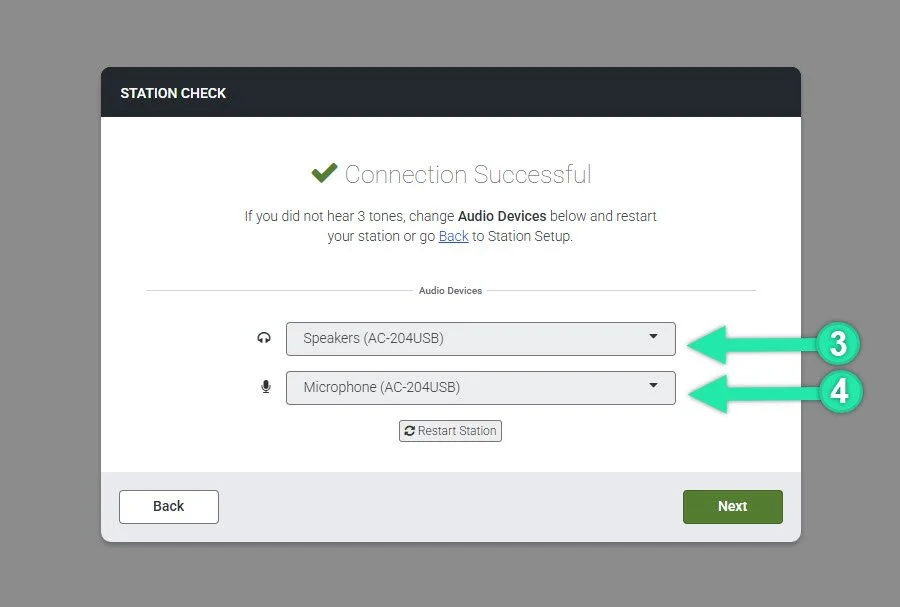
- Confirm the settings and continue into the application.
Method 2: Change your headset in Five9 settings
-
In the top-left of the dashboard, left-click your user name to open the drop down menu, then left-click “Settings.”
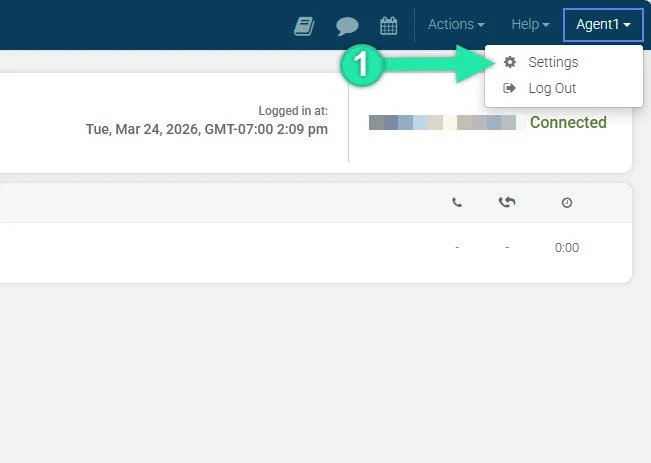
-
Left-click the “Audio” tab.
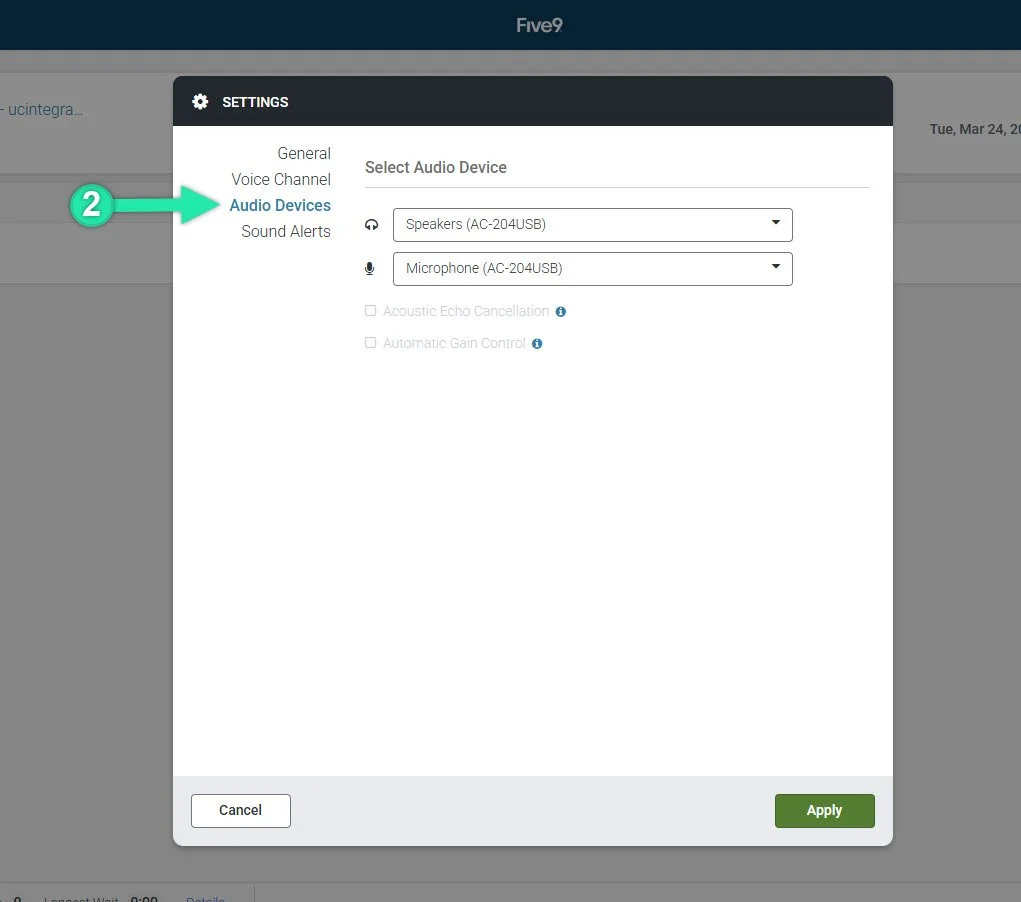
- Under “Microphone” or input, left-click the down caret to open the drop down menu and select your headset from the list.
- Under “Speakers,” left-click the down caret and select your headset again.
- Double-check that both input and output are assigned to the same device before starting calls.
If only one side is assigned correctly, you may be able to hear callers without being heard, or the microphone may work while audio still plays through your computer speakers.
Troubleshooting
If your headset isn’t working as expected:
- Restart the Five9 softphone after connecting your headset.
- Make sure the correct microphone and speaker are selected in Five9 audio settings.
- Check that your microphone isn’t muted in Five9 or your computer settings.
- Reconnect the headset or try a different USB port or cable.
- Disconnect unused audio devices to avoid conflicts.
- Close and reopen Five9 if the headset was connected after launch.
- Keep Bluetooth headsets within the recommended range of your computer.
- Update your system audio drivers or headset firmware, if available.
Additional Support
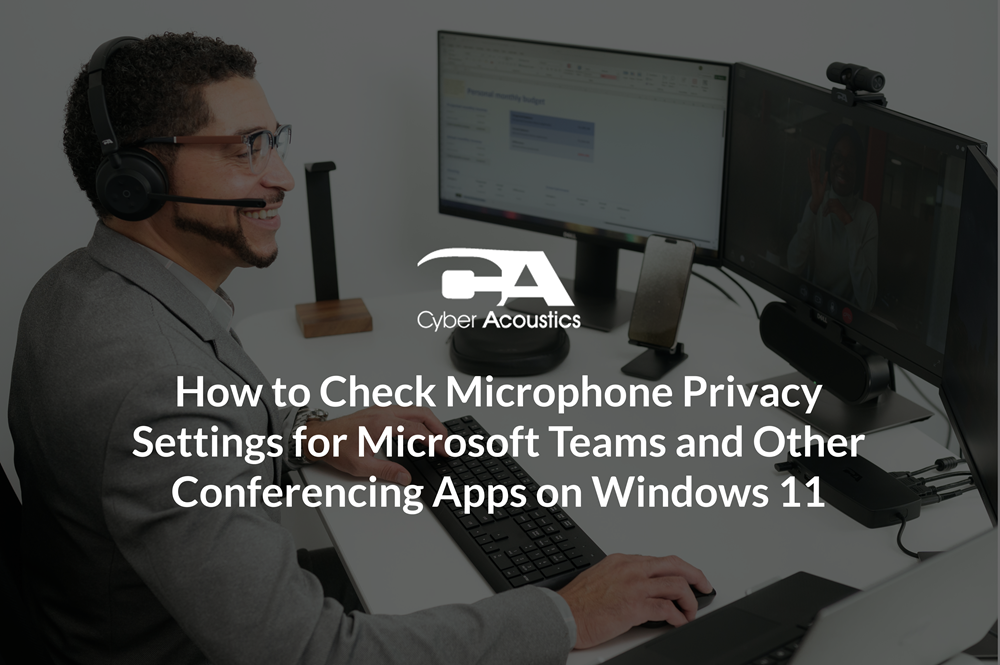
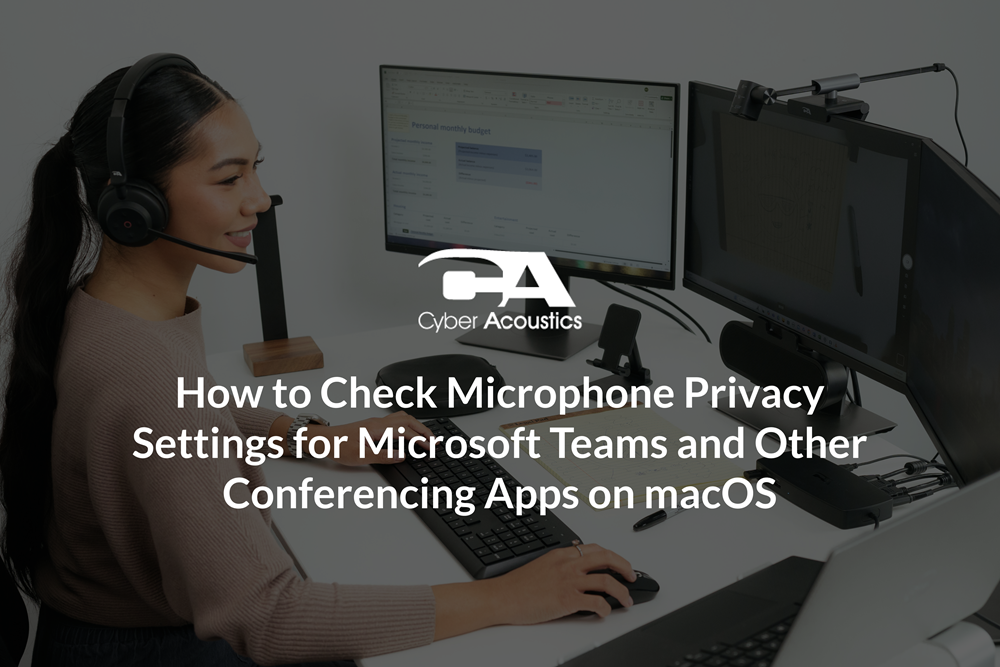
How to Verify Microphone Privacy Settings
It’s critical to confirm that your operating system has the correct privacy permissions, otherwise Five9 Agent Desktop won’t be able to use your microphone.
Follow the guides below to make sure your privacy settings are properly configured:
FAQ
Why can I hear audio but my microphone does not work?
In most cases, Five9 is using the correct speaker device but the wrong microphone input. Go back into the audio settings and make sure both the microphone and speakers are assigned to the same headset.
Why is Five9 not detecting my headset?
Five9 may not see the device correctly if the headset was connected after launch. Connect the headset first, confirm your computer recognizes it, then restart the Five9 softphone.
Do I need to change audio settings every time I log in?
Not usually, but if you switch between multiple audio devices or reconnect a Bluetooth headset, it’s a good idea to confirm your selected microphone and speaker before taking calls.
What should I do if the wrong device keeps getting selected?
Disconnect unused audio devices, reconnect your headset, and reopen Five9. This reduces device conflicts and makes it easier to select the correct input and output device.
For more troubleshooting tips and product support topics, visit our full FAQ library.