


Often, the issue is not the headset itself. It is the way the headset, computer, calling app, noise cancellation settings, and workspace are working together.
A bad-sounding headset microphone can make every call harder than it needs to be. Your voice may sound muffled, robotic, distant, distorted, quiet, echoey, or like you are speaking from inside a tunnel. Background noise may come through louder than expected. In some cases, the headset may work perfectly one day and sound terrible the next.
Before assuming the headset has failed, it helps to look at the full audio path. Call quality depends on the headset, the computer, the operating system, the calling app, any noise cancellation software, and the room around you. When one of those layers is not set up correctly, even a quality headset can sound muffled, distorted, or inconsistent.
There is another side to it, too: not every headset is built for every environment. A headset that works well in a quiet home office may not be the right fit for a busy call center. A Bluetooth headset may be convenient for light use, but less predictable in shared workstations or high-volume call environments. A headset without the right microphone design may pick up more background noise than expected.
In this guide, we’ll walk through the most common reasons headset microphones sound bad on calls, what to check first, and when it may be time to choose a headset that better matches your work environment.
1. Why Your Headset Mic Sounds Bad: Start with the Full Audio Path
Before replacing a headset, start by checking the full setup.
Your microphone audio may be affected by the selected input device, operating system sound settings, calling app settings, noise suppression settings, third-party audio tools, Bluetooth connection behavior, microphone position, and the room around you.
For example, Windows may be using your laptop microphone instead of your headset microphone. Microsoft Teams or Zoom may be applying aggressive noise suppression. A tool like Krisp or Sanas may be processing audio at the same time as the headset. Or the microphone boom may simply be too far from your mouth.
The headset may be working exactly as designed, but the rest of the setup may be getting in the way.
2. Too Much Noise Cancellation Can Make Your Microphone Sound Muffled or Robotic
Noise cancellation can be helpful, but more noise cancellation does not always mean better audio.
Many headsets include built-in microphone noise cancellation. At the same time, apps like Microsoft Teams, Zoom, Google Meet, softphones, Krisp, and Sanas may also apply their own noise suppression.
When multiple tools are trying to clean up your microphone at the same time, your voice can get processed too aggressively. This can make your voice sound muffled, robotic, compressed, or unnatural. You may also hear static, crackling, words cutting in and out, or a tunnel-like effect.
The goal is not to turn every audio enhancement on. The goal is to use the right layer of noise cancellation for your environment.
If you are using Krisp or Sanas, see our guide on using Cyber Acoustics headsets with Krisp and Sanas. If you are using Microsoft Teams, our guide on how to turn noise suppression on or off in Microsoft Teams can help you check whether Teams is adding another layer of processing.
3. Background Noise, Echo, and Room Noise Can Affect Call Quality
Not all background noise behaves the same way.
A steady fan behind your desk is very different from coworkers talking nearby. Keyboard clicks are different from a barking dog. Room echo is different from traffic outside a window.

Steady sounds like fans, air conditioning, and office hum are usually easier for microphone noise cancellation to reduce. Sudden sounds like keyboard taps, doors closing, or dropped objects are harder to remove cleanly. Nearby voices can be especially difficult because they are similar to the sound your microphone is trying to keep: human speech.
Room echo can also make your voice sound worse, even if the headset is working properly. Hard walls, glass, bare floors, and open rooms can reflect sound back into the microphone and make your voice seem hollow or distant.
If the room itself is loud or reflective, software alone may not fix everything. A better headset can help, but the best results usually come from matching the headset, software settings, and workspace to the type of noise around you.
For a deeper look at background noise types, room setup, and practical fixes, read Best Ways to Reduce Background Noise on Work Calls.
4. Your Computer or Calling App May Be Using the Wrong Microphone
One of the simplest issues is also one of the most common: your computer or calling app may not be using the headset microphone at all.
Your system may select a laptop microphone, webcam microphone, monitor microphone, Bluetooth hands-free profile, docking station input, or another device instead of the headset. This can make your voice sound far away, hollow, quiet, echoey, or like you are speaking from across the room.
This is especially common when several devices are connected at the same time, such as a webcam, docking station, speakerphone, Bluetooth headset, and USB headset.
Check the selected microphone in your computer’s audio settings, then check it again inside your calling app. Your operating system and your calling app may not always use the same microphone by default.
5. Microphone Permissions May Be Blocking Your Headset
Sometimes the headset is connected correctly, but the operating system or browser is blocking microphone access.
This can happen on Windows, macOS, or browser-based calling apps. If your headset appears connected but nobody can hear you, microphone permissions are one of the first things to check.
This is especially important for browser-based calling apps, Microsoft Teams, Google Meet, Five9, web-based softphones, newly installed conferencing apps, or recently updated operating systems.
Use the guide that matches your setup:

If microphone permissions are blocked, the headset may not be the issue at all. The computer or browser may simply be preventing the app from using it.
6. Teams, Zoom, Google Meet, or Softphones May Be Changing Your Microphone Audio
Microsoft Teams, Zoom, Google Meet, Five9, and other browser-based or desktop softphone platforms can all handle microphone audio differently.
If your voice sounds worse in one app but normal in another, the headset is probably not the root cause. The app settings are likely changing how your microphone audio is being handled.
Start by checking which microphone and speaker are selected inside the app. Then review any features labeled “Noise Suppression,” “Voice Isolation,” “Echo Cancellation,” or “Automatically Adjust Microphone Volume.” These settings can help in some environments, but they can also create problems when paired with a headset that already has built-in microphone noise cancellation.
The best test is simple: change one setting at a time, then make a short test call or recording. If the problem only happens in one platform, focus on that platform before changing everything else.
7. Headset Setup Guides for Teams, Five9, Google Meet, and Browser-Based Calling Apps
If the issue seems tied to a specific calling platform, use the matching setup guide instead of changing every audio setting at once.

These guides walk through headset selection, microphone permissions, browser access, and test-call steps so you can confirm the app is using the right microphone and speaker.
8. Hearing Yourself in Your Headset? Check Mic Monitoring
Mic monitoring lets you hear some of your own voice in the headset while speaking. This can be useful in certain workflows, but it can also cause confusion if it is turned on unexpectedly.
If you hear yourself with a delay, hear echo, or feel like your microphone audio is playing back through your headset, mic monitoring may be enabled.
In Windows, this may appear as “Listen to this device.” If you need to check or change this setting, use our guide on how to hear yourself through your microphone on Windows. This is also the setting users can check if they need to turn microphone playback back off.
9. Microphone Position Can Make Your Voice Sound Quiet or Distant
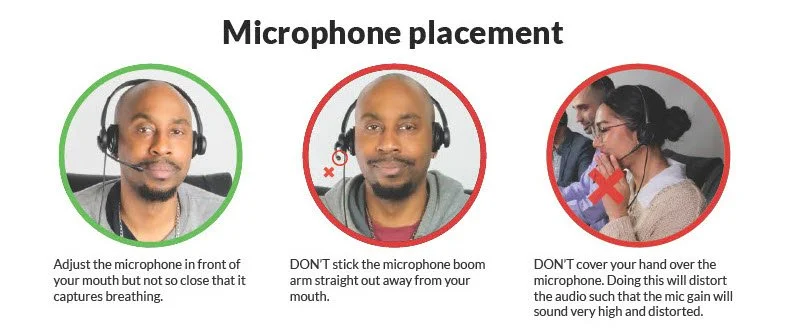
Even with the right headset, microphone position can affect how clear your voice sounds.
A boom microphone should usually sit near the corner of your mouth, not directly in front of your lips and not too far away from your face. If the microphone is under your chin, too far to the side, or pointed away from your mouth, your voice may sound quiet, distant, or inconsistent.
This is especially important in busy environments. The farther the microphone is from your voice, the harder it has to work to separate speech from background noise.
Keep the boom position consistent from call to call so your voice level stays steady.
10. Your Headset May Not Be the Right Fit for Your Call Environment
Sometimes the headset is working as designed, but it is not the right match for the environment.
A basic headset may be fine for occasional calls in a quiet room. But in a call center, support desk, open office, or training environment, the demands are different. Agents may be taking calls for long shifts, working near other conversations, dealing with HVAC noise, sharing workstations, moving between platforms, or participating in training and supervisor monitoring workflows.
In that kind of environment, the best headset is not just the one that works. It is the one that works consistently across users, workstations, and calling platforms.
For more help choosing the right headset for a call center or support environment, see Choosing the Right Headset for Call Center Efficiency.
For everyday call center use, Cyber Acoustics’ Daily Agent headset options are designed for reliable USB audio and clear voice pickup throughout the workday. This includes models like the AC-204ENC II, AC-304 / AC-304C, and AC-404.
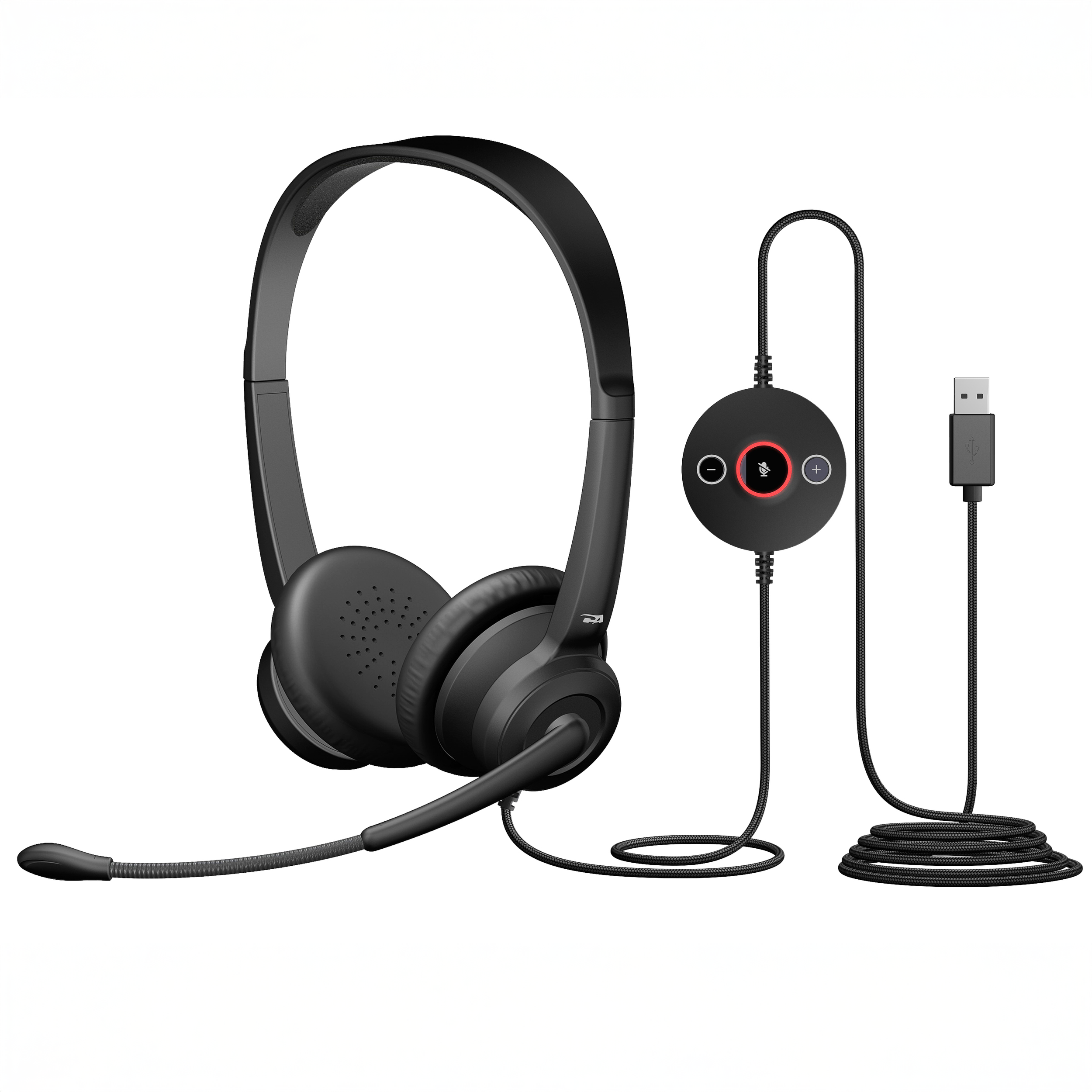

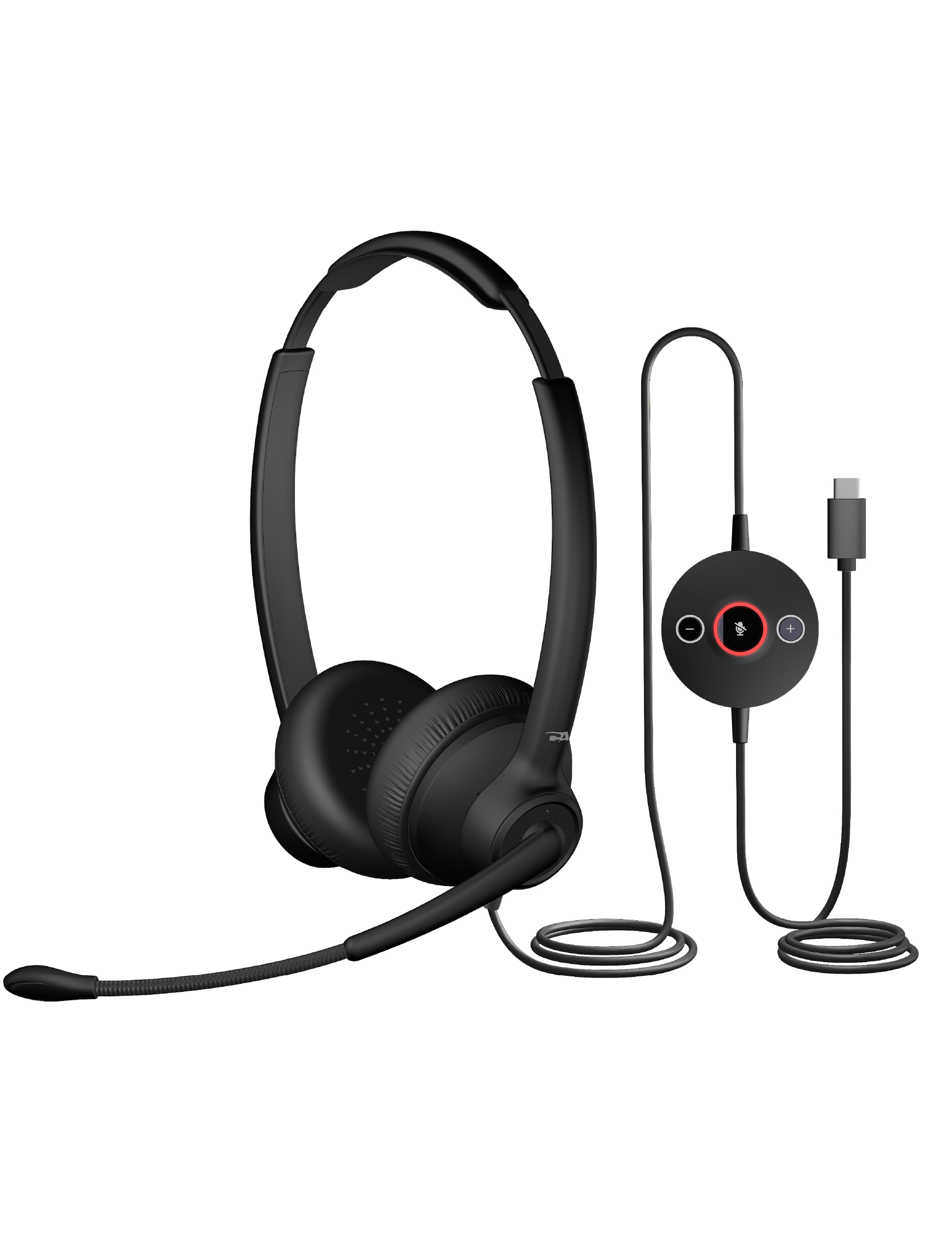
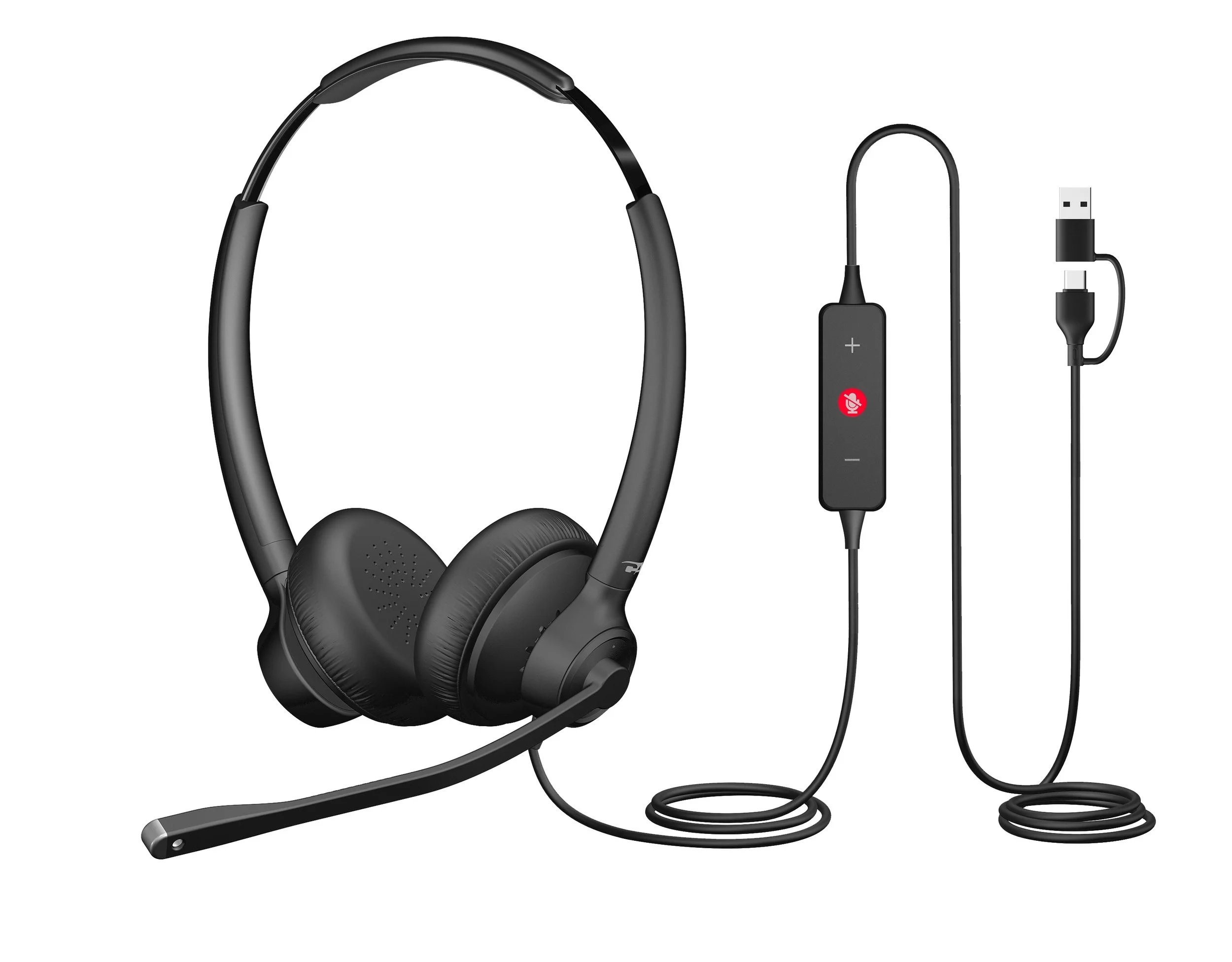
For more demanding call environments, the AC-404 is a strong fit when microphone clarity, background noise reduction, and USB-C/USB-A flexibility are especially important.
For training and supervisor support, the Cyber Acoustics Agent Assist setup is designed for call monitoring and coaching workflows. Trainers can use the HS-1500BT II with the AC-204TR or AC-304TR to monitor or assist during calls without being physically tethered to the agent station.
The right headset depends on the environment. If your settings are correct and call quality still falls short, it may be time to move to a headset designed for the way your team actually works.
Quick Troubleshooting Checklist for Headset Microphone Problems
Before assuming the headset is defective, work through the basics.
- Check that the correct microphone is selected in your operating system.
- Check that the correct microphone is selected in your calling app.
- Make sure microphone access is allowed in Windows, macOS, or your browser.
- Test one layer of noise cancellation at a time.
- Check microphone position.
- Test the headset in another app or on another computer.
- Decide whether the headset matches the environment.
If the headset sounds normal in one app but bad in another, focus on the app settings. If it sounds bad across every device and every app, then the headset, cable, connector, USB port, adapter, or Bluetooth connection may need closer inspection.
Clearer Call Audio Comes from the Right Headset, Settings, and Workspace
A bad-sounding headset microphone does not always mean the headset is broken.
In many cases, the issue comes from the way your headset, computer, calling apps, and workspace are working together. Too much noise cancellation, the wrong microphone input, blocked microphone access, app settings, microphone position, and room noise can all affect how your voice sounds on calls.
If the setup is right and the audio still is not meeting expectations, the next question is whether the headset is the right fit for the workspace or call volume.
Clearer call audio comes from the right combination of headset, settings, software, and environment.